Documentation Index

Fetch the complete documentation index at: https://quashbugs.com/docs/llms.txt

Use this file to discover all available pages before exploring further.

This page walks through creating a suite from scratch, adding test cases, configuring execution mode, and running it for the first time. https://www.youtube.com/watch?v=b1jU5EefytY

Step 1 — Create the suite

SCREENSHOT

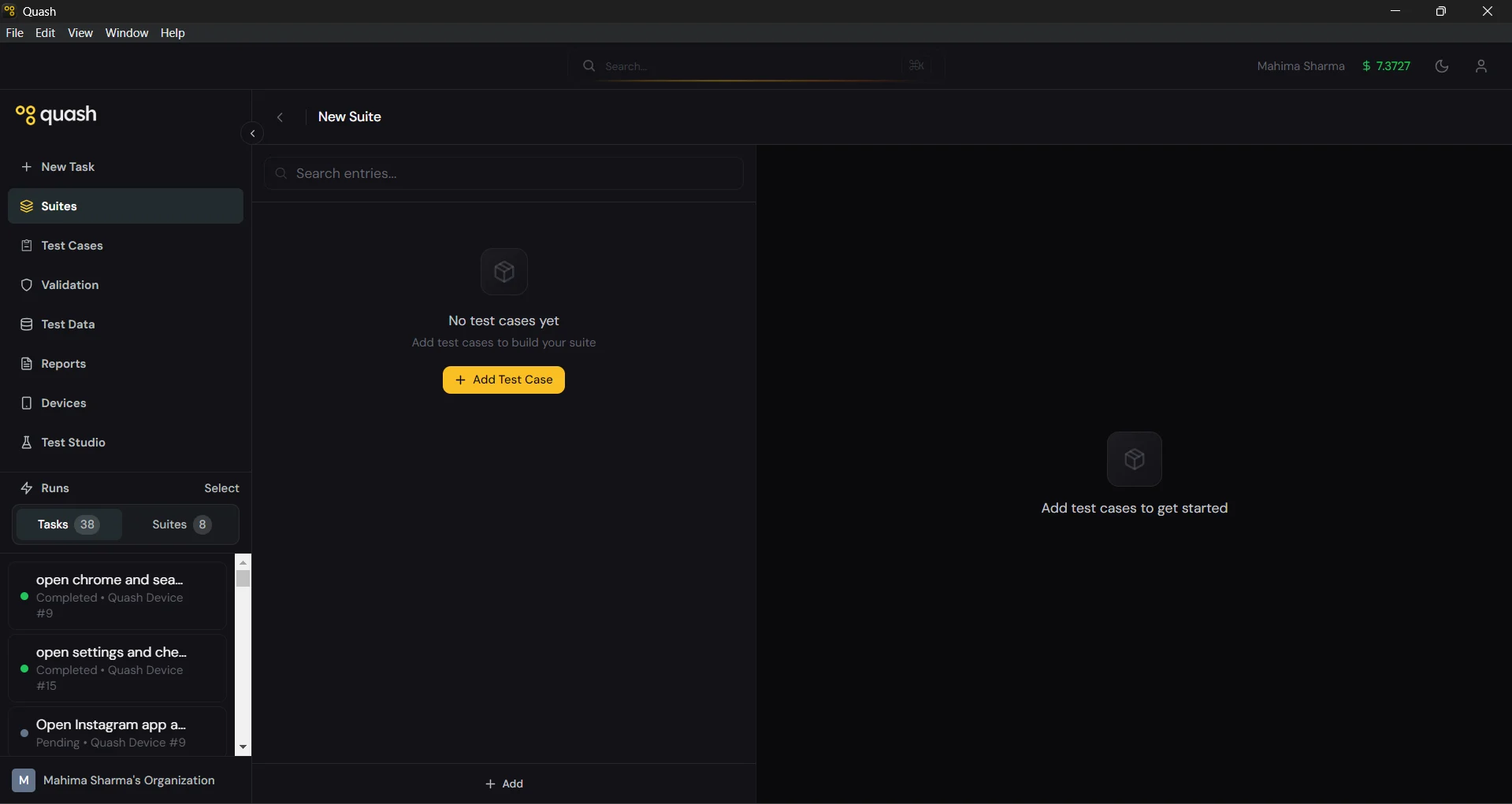
  1. Click Suites in the left navigation panel.
  2. Click + New Suite in the top right.
![](/images/image (26).png)
  1. Click the name field at the top of the new suite and give it a descriptive name.
Good suite names make the purpose obvious without opening it:
GoodPoor
”Checkout Flow — Regression""Suite 3"
"Login & Auth — Smoke""Tests"
"Onboarding — Sprint 24 full coverage""Onboarding tests new"
"Payment — Edge Cases""Payment”

Step 2 — Add test cases

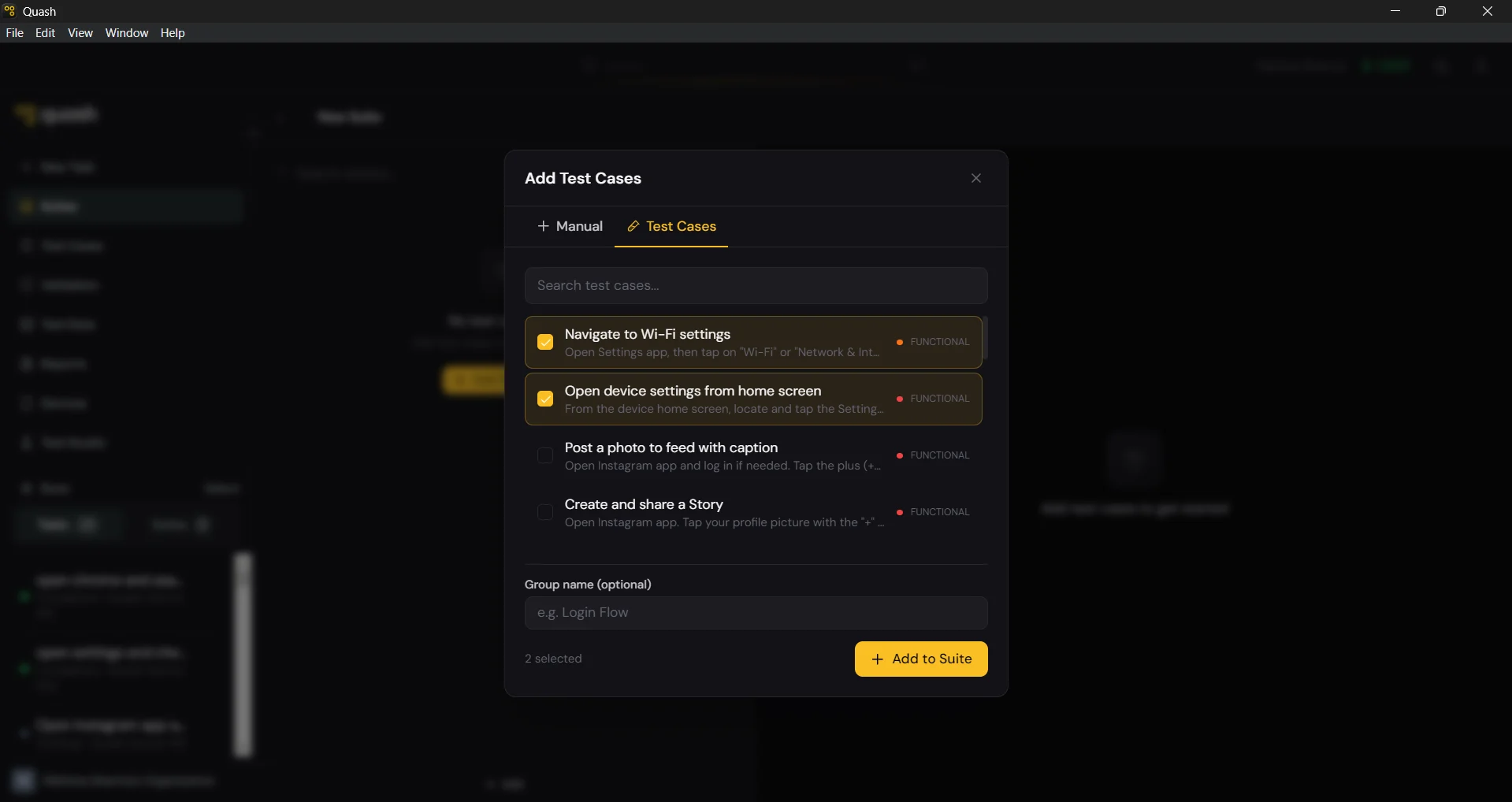
Click Import Test Cases in the center of the screen. The Add Test Cases modal opens with two tabs. ![](/images/image (27).png)
  1. Click the Test Cases tab.
  2. Search by name, or filter by priority, type, or tag.
  3. Check the boxes next to the cases you want.
  4. Click + Add to Suite.
The selected cases are added immediately. Repeat the search and selection process as many times as needed — the modal stays open until you close it.

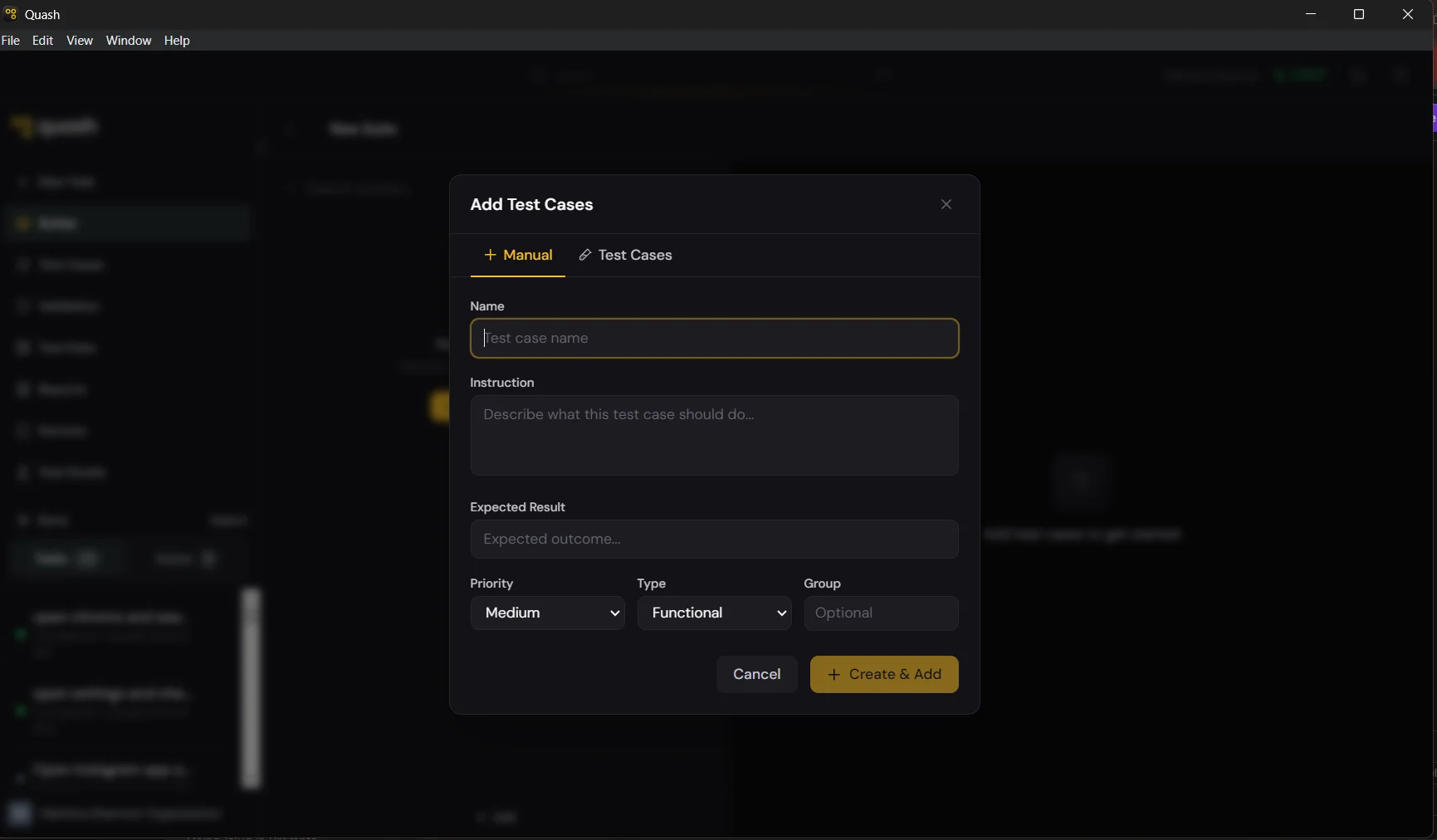
Write a new one on the spot

![](/images/image (20).png)
  1. Click the Manual tab.
  2. Fill in the name, instruction, expected result, priority, and type.
  3. Click + Create & Add.
The case is created, added to this suite, and saved to your Test Cases library simultaneously — you do not need to create it separately first.

Step 3 — Organise into groups (optional)

If your suite has more than six or seven cases, groups help with readability and navigation. Click + Add Group and give it a name. Drag test cases into the group, or assign them during the Add Test Cases flow. Groups are visual only — they do not affect execution order or mode.

Step 4 — Set execution mode

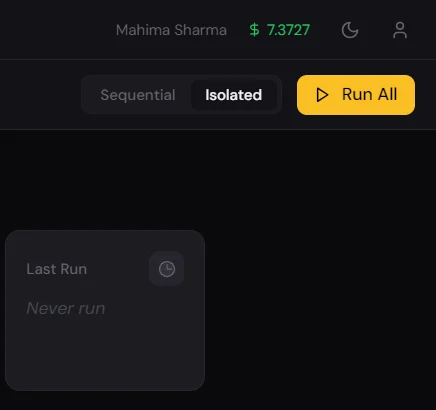
![](/images/image (28).png) Use the Sequential / Isolated toggle in the top right of the suite view. Sequential — cases run in order, sharing state. Use for connected flows. Isolated — cases run independently, can run in parallel. Use for self-contained tests. If you are not sure, choose Isolated. You can switch at any time without affecting the test cases themselves. → Full explanation: Sequential vs. Isolated

Step 5 — Run the suite

  1. Click Run All.
  2. Select the device or devices to run on from the device picker.
    • For Isolated suites, you can select multiple devices — Quash distributes cases across them automatically.
    • For Sequential suites, select one device — cases must run in order on the same device.
  3. Click Confirm.
The run starts immediately. Go to Reports to watch results come in, or stay on the suite page — the pass rate updates in real time.

Adding cases to an existing suite

You can add test cases to a suite at any time — not just at creation. From inside the suite: Click + Test Case at the bottom of the left panel. The same Add Test Cases modal opens. Search, select, and add. From the Test Cases library: Select one or more test cases using the checkboxes in the library list. A bar appears at the bottom — click Add to Suite and choose this suite from the dropdown. From Test Studio: After generating tests in a recipe, select them in the Tests panel and click + Add to Suite. Choose this suite from the dropdown.

Deleting a suite

Open the suite, click the menu in the top right, and select Delete Suite. Confirm the deletion. Deleting a suite does not delete the test cases inside it — they remain in the library. Only the suite grouping is removed.