
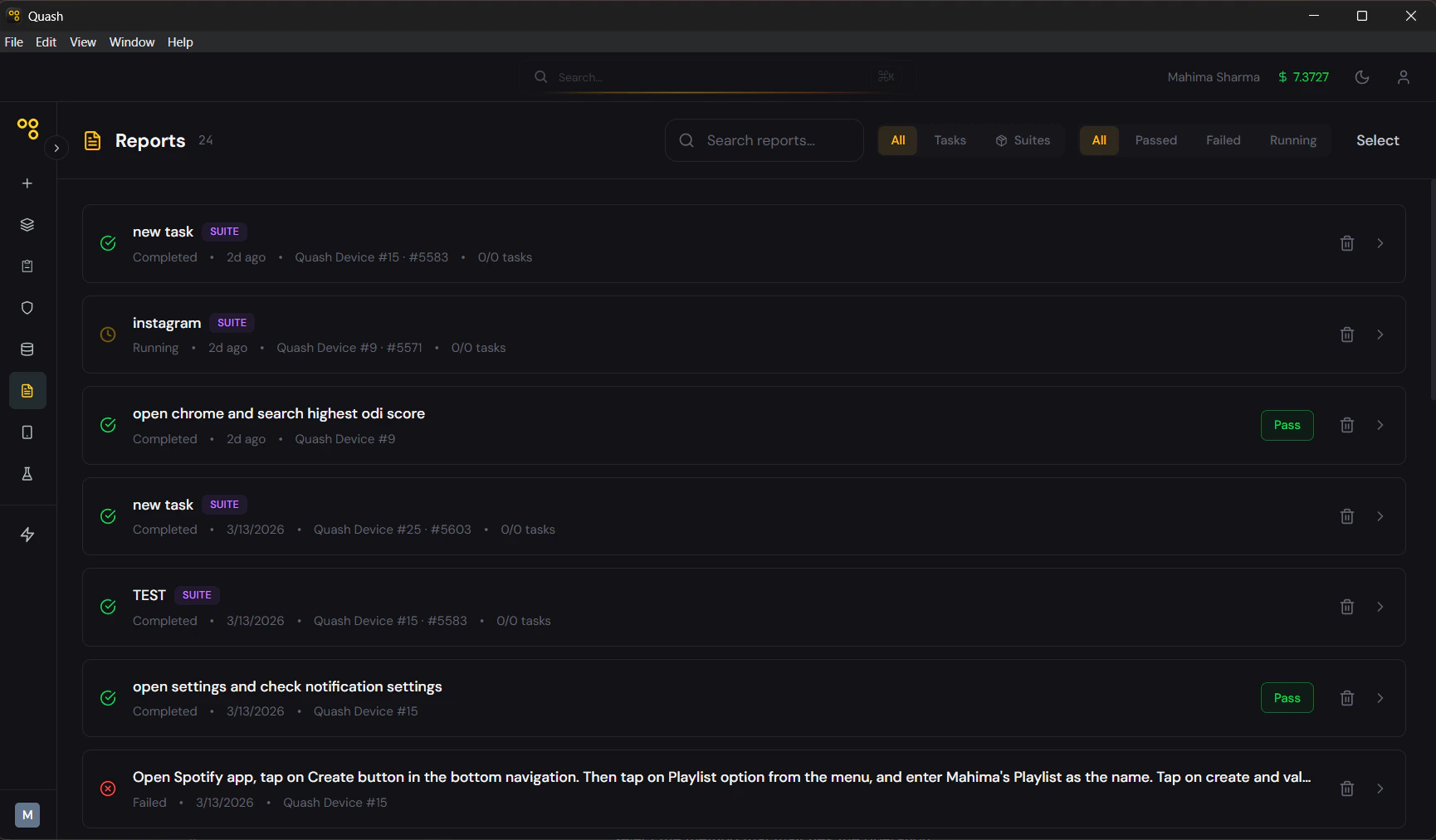
Report Dashboard
When you open Execution Reports, you will see a summary of all test activity at the top. The dashboard displays:- Total Runs – The number of test runs executed.
- Completed – The number of runs that finished successfully or with results.
- Failed – The number of runs that encountered errors or did not pass.
- Success Rate – The percentage of passed runs against total runs.
The Reports List
The main view lists all reports in reverse chronological order. Each entry shows the prompt that was run, the device it ran on, when it completed, and the final result. Suite runs carry a SUITE badge. Every report has one of three outcomes:- Pass — The task completed and all steps executed as expected.
- Failed — The task did not complete successfully.
- Partial Success — The task completed some steps but could not finish — usually because of something outside Quash’s control, such as a CAPTCHA or a mandatory manual step.