
The two options
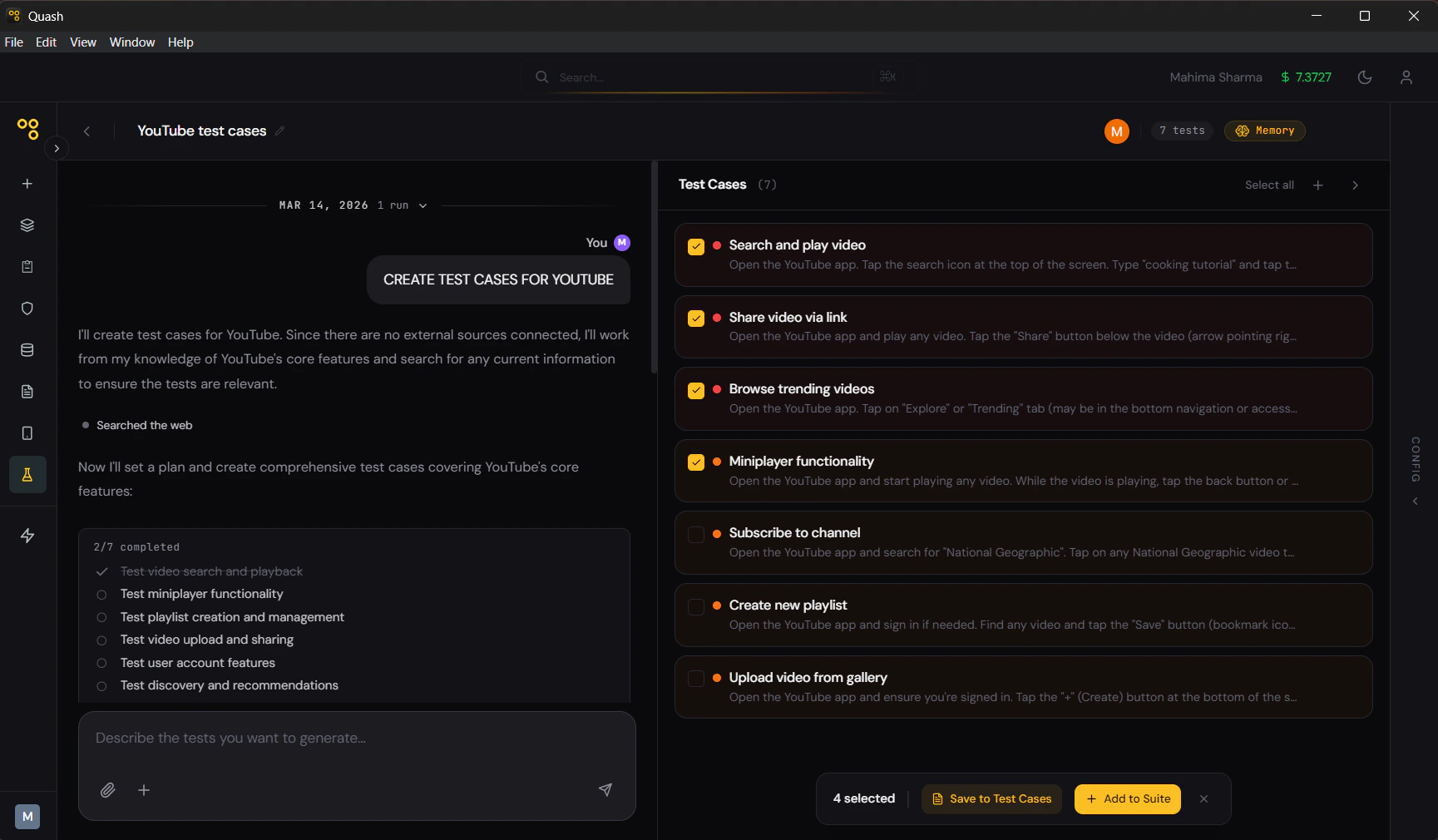
Save to Test Cases (recommended)
Saving to the Test Cases library adds your generated tests to a central repository at the workspace level. From there, they can be added to any number of suites, searched and filtered, edited, and reused across different projects and sprints. Use this when:- You are building a test library over time
- The tests might be used in more than one suite
- You want to organise, tag, and maintain tests centrally
- You are working on a feature that will have ongoing test coverage
- In the Tests panel, select the tests you want — individually or using Select all
- Click Save to Test Cases
- Tests appear in the Test Cases library immediately
Add to Suite (faster)
Adding directly to a suite skips the library and places the tests straight into a specific suite, ready to run. Use this when:- You know exactly which suite these tests belong to
- The tests are for immediate, one-off execution
- Speed matters more than long-term organisation
- In the Tests panel, select the tests you want
- Click + Add to Suite
- Choose an existing suite or create a new one
- Tests are immediately added and ready to run
Which to choose
If you are unsure, save to Test Cases. You can always add library tests to a suite later — it takes seconds. The reverse is harder: tests added directly to a suite without going through the library are harder to find, reuse, and maintain.Selecting tests before saving
You do not have to save everything Megumi generates. Review the Tests panel before saving.- Click the checkbox on individual cards to select specific tests
- Click Select all at the top to grab everything
- The selected count appears at the bottom — e.g., “3 selected”
- Click Clear to deselect without saving
After saving
Once tests are in the library, you can:- Add them to any suite from the Test Cases list
- Edit instructions, expected results, priority, or type
- Tag them for filtering and organisation
- View which suites currently include them before making changes
- Export them for use in other tools