Documentation Index

Fetch the complete documentation index at: https://quashbugs.com/docs/llms.txt

Use this file to discover all available pages before exploring further.

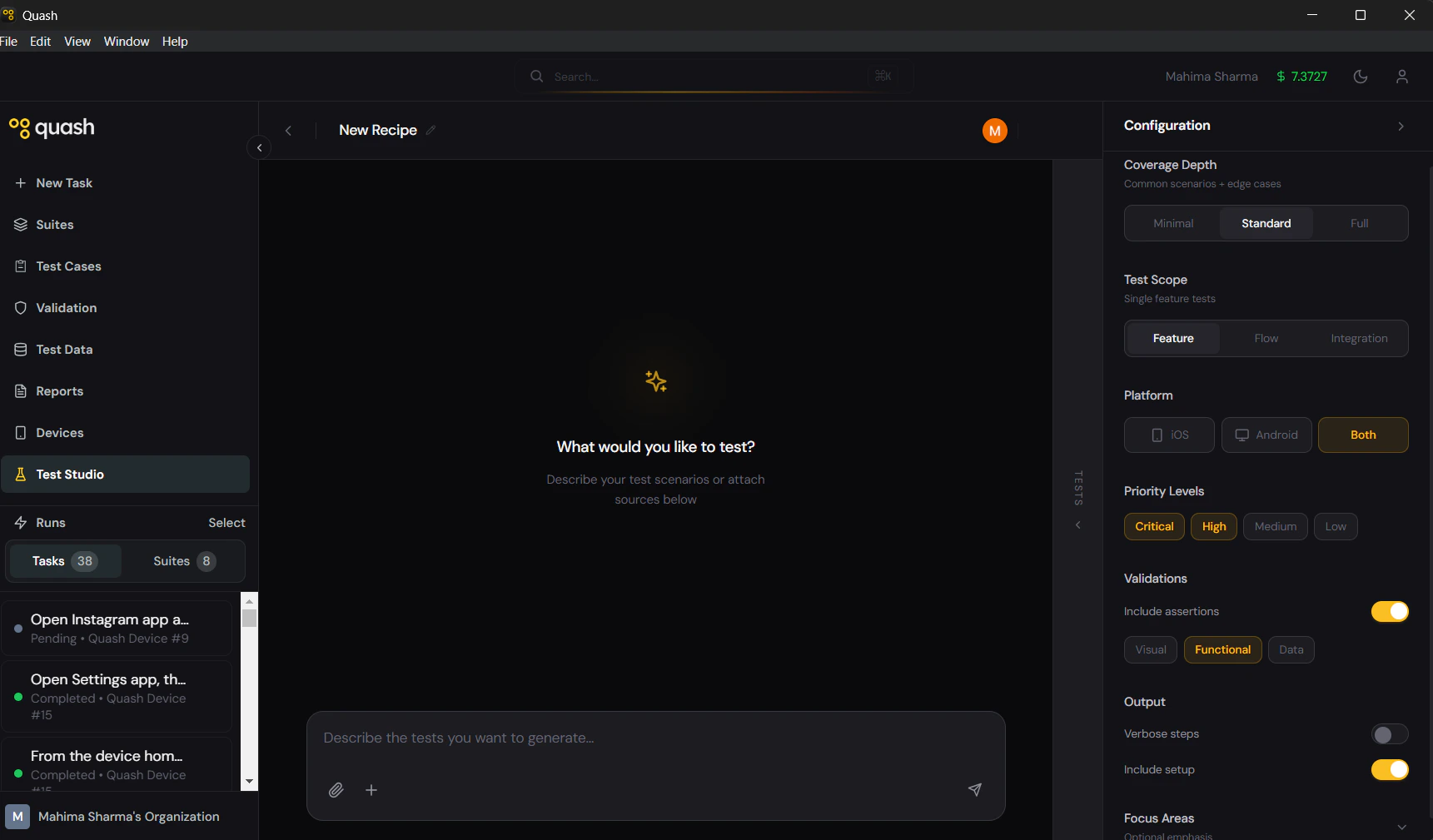
![](/images/image (3).png) The CONFIG panel controls how Megumi generates tests — how thorough, what type, which platform, and what kinds of validations to include. Set it before your first prompt to shape everything Megumi produces in the recipe session. To open the CONFIG panel: Click CONFIG on the right edge of the Test Studio screen.

When to configure

Before your first prompt. This is the ideal time. Configuration shapes how Megumi interprets your prompt — a Full coverage depth with Integration scope will produce significantly different output than a Minimal depth with Feature scope from the same prompt. Mid-session. You can change settings and re-prompt at any point. Megumi will adjust its approach based on the new configuration. Useful when you start with a quick smoke pass and then want to go deeper. Per recipe. Each recipe stores its own configuration. You do not need to reconfigure every time you open a recipe — settings persist. If you are unsure what to set, leave the defaults. They work well for most scenarios.

Coverage Depth

Controls how comprehensive the generated tests are.
SettingWhat it produces
MinimalCore happy path only. The most common user flow succeeding under ideal conditions. Fast to generate, fast to run.
StandardHappy path plus common failure states and basic edge cases. The default — appropriate for most everyday test generation.
FullBoundary conditions, all failure states, security edge cases, data validation extremes, and scenarios you would likely miss writing manually. Use this when you need thorough coverage for a critical feature.
When to use Full: Before a major release, for any flow that handles payment or personal data, or when a feature has a history of regression bugs.

Test Scope

Sets the type of tests Abgumi generates.
SettingWhat it produces
FeatureTests that validate one piece of functionality in isolation. Each test focuses on a specific behaviour of a specific component.
FlowTests that trace a user through a multi-step journey across screens. Each test covers a complete path from entry to outcome.
IntegrationTests that validate how different parts of the app work together — UI state and backend response, one feature triggering state changes in another.
These are not mutually exclusive — you can run multiple recipes with different scopes on the same feature. A Feature recipe and a Flow recipe for the same checkout module will produce complementary, non-overlapping coverage.

Platform

Sets whether Abgumi generates tests for iOS, Android, or both.
SettingWhat it means
Both (default)Test steps are written in platform-agnostic language — the same instruction works on both platforms. Use this unless a feature is genuinely platform-specific.
iOSInstructions reference iOS-specific UI patterns, gestures, and component names where relevant.
AndroidInstructions reference Android-specific patterns — hardware back button behaviour, Android navigation, etc.
If you are testing a feature that behaves differently on each platform — like biometric authentication, file picker behaviour, or notification handling — generate separate recipes per platform rather than using Both.

Priority Levels

Controls which priority tiers Recipe includes in its output.
SettingWhat gets included
CriticalTests for the most important flows — login, core actions, anything that blocks users entirely if broken. Always on by default.
HighTests for important features users interact with daily. On by default.
MediumTests for features that matter but are not release-blocking. Off by default.
LowEdge cases, rarely-used features, cosmetic behaviour. Off by default.
For a smoke suite, use Critical only. For a regression suite, enable all tiers. For exploratory coverage, start with Critical and High, then add Medium once the core is solid.

Validations

Controls whether Recipe adds assertion steps to generated tests — verifying that the expected outcome actually occurred, not just that the steps ran.
Validation typeWhat it checks
VisualWhat is visible on screen — element presence, text content, component state
FunctionalWhether the feature behaved correctly — navigation occurred, action completed, state changed
DataValues returned, stored, or displayed — numbers, names, totals, API responses
Multiple validation types can be active simultaneously. For most cases, enabling Functional and Visual together produces well-rounded test cases. Add Data when you need to verify specific values, especially in flows involving pricing, counts, or form data. When validations are off, Recipe generates tests that confirm steps were executed but do not verify the outcome. This is useful for exploratory or navigation-focused tests where you are checking coverage rather than correctness.

Output formatting

Two additional options that control how Recipe structures the generated test steps. Verbose steps. When enabled, every action is written out explicitly — every tap, scroll, navigation step, and wait. Useful when you want test instructions that a manual tester could follow precisely, or when the agent has historically misinterpreted abbreviated steps in your app. Include setup. When enabled, Recipe adds precondition steps at the beginning of each test — the state the app needs to be in before the test starts. Useful for tests that require a logged-in user, a specific data state, or a particular screen to be action first.