
Suite Overview
A test suite is a named collection of test cases that run together as a unit. Instead of running tests one at a time, suites let you execute everything related to a feature, a flow, or a release cycle in a single run — with unified results and one report covering everything. To access Suites: Click Suites in the left navigation panel.Why suites exist
Individual test cases are useful. Suites are how they become a testing strategy. A suite for your login flow runs every authentication scenario in one go — valid credentials, invalid password, empty fields, forgotten password, account locked. A suite for your release process runs your smoke tests across every critical flow before anything ships. A regression suite runs everything that has ever broken, automatically, on every PR. Suites are also where execution becomes efficient. Run the same set of tests across multiple devices simultaneously. Get one report with a clear pass rate instead of ten separate reports to interpret.The suite list
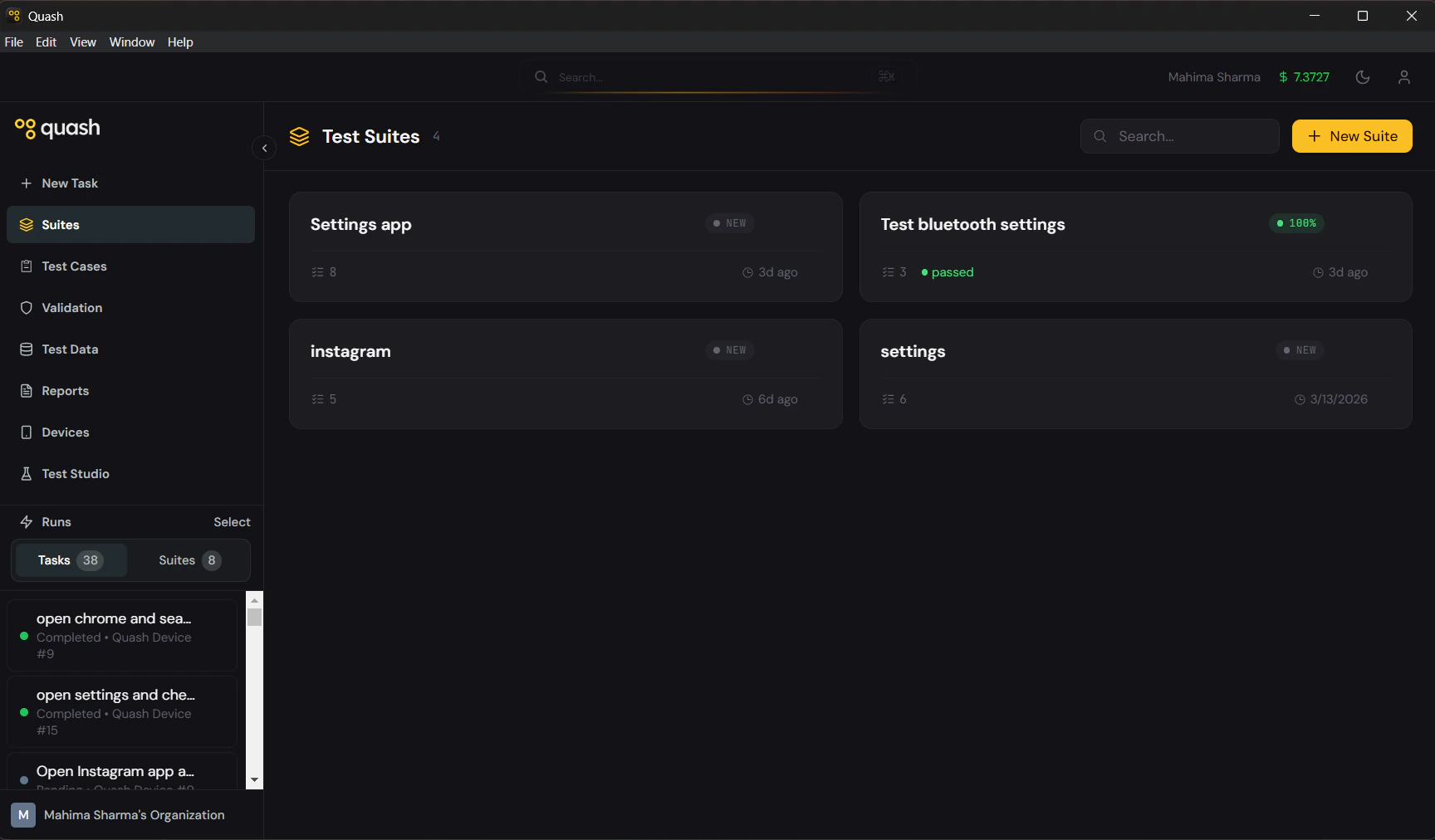
- Suite name
- Number of test cases it contains
- Last run date and result
- Pass rate from the most recent run as a progress bar
- NEW badge if the suite has never been run
Inside a suite
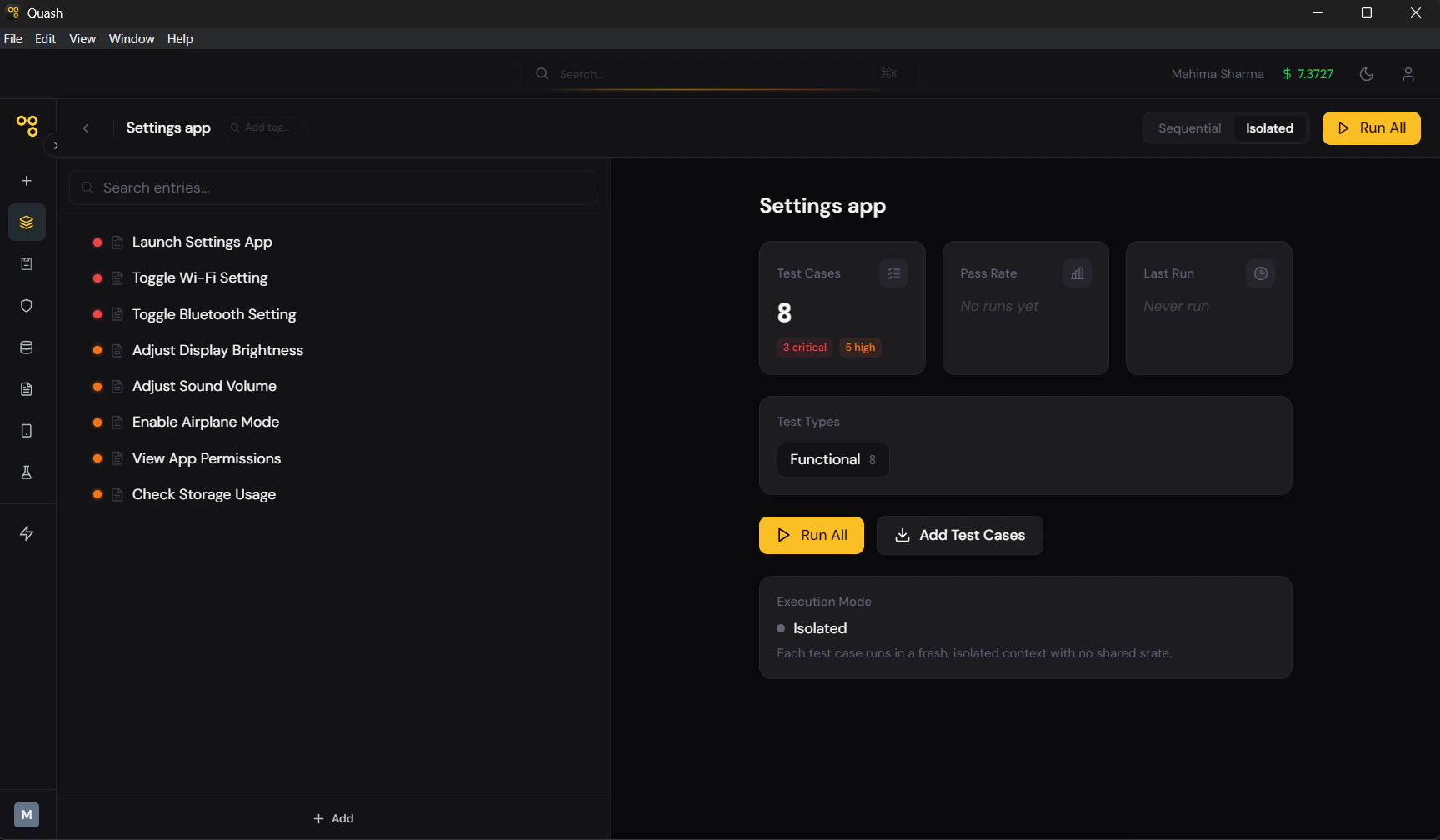
- Total test case count with priority breakdown (Critical, High, Medium, Low)
- Pass rate from the last run
- Last run date and total duration
- Test type breakdown (Functional, Smoke, Regression, E2E)
- Current execution mode
Execution modes
Every suite runs in one of two modes. This is the most important configuration decision for a suite — it determines whether test cases share state or run independently.Sequential
Test cases run in order. Each case starts from the state left by the previous one. Use when: Your cases form a connected flow where order matters. The classic example: create account → log in → complete profile → make a purchase. Each step depends on the previous one succeeding. What happens if a case fails: By default, the suite continues to the next case. You can configure the suite to stop on first failure if a blocking step should halt everything downstream.Isolated
Each test case runs independently with no shared state. Cases can run in parallel across multiple connected devices simultaneously. Use when: Your cases are self-contained and do not depend on each other. Independent feature tests — search, notifications, profile editing — are all good candidates. Advantage: Because cases are independent, Quash can distribute them across multiple devices at once. A 20-case isolated suite running on 4 devices takes roughly the time of 5 sequential cases.Which to choose
If removing one test case from the suite would break the others — use Sequential. If any single case would still make sense running on its own — use Isolated. When in doubt, Isolated is safer. You can always switch later.Suite groups
Within a suite, you can organise test cases into named groups. Groups are visual organisers — they do not affect execution order or mode. Use groups to cluster related cases inside a large suite:Running a suite
- Open the suite.
- Click Run All.
- Select the device or devices to run on.
- Confirm. The run begins immediately.
Task Preview Panel
Before running the full suite, you can preview individual test cases in isolation using the Task Preview Panel.- Open the suite.
- Click the play icon on any test case card.
- The Task Preview Panel opens on the right with the device view loaded for that specific case.
- Debugging a single case before running the full suite
- Validating setup or navigation steps after editing a test
- Checking whether a recently modified test behaves as expected
Suite reports
Every suite run generates a single Execution Report covering all cases in the run. The report shows:- Overall pass rate and verdict
- Per-case breakdown — which passed, which failed, which returned Partial Success
- Executive Summary covering the run as a whole
- Individual step-by-step detail accessible for each case
- Device recordings for every case