
Creating a dataset manually
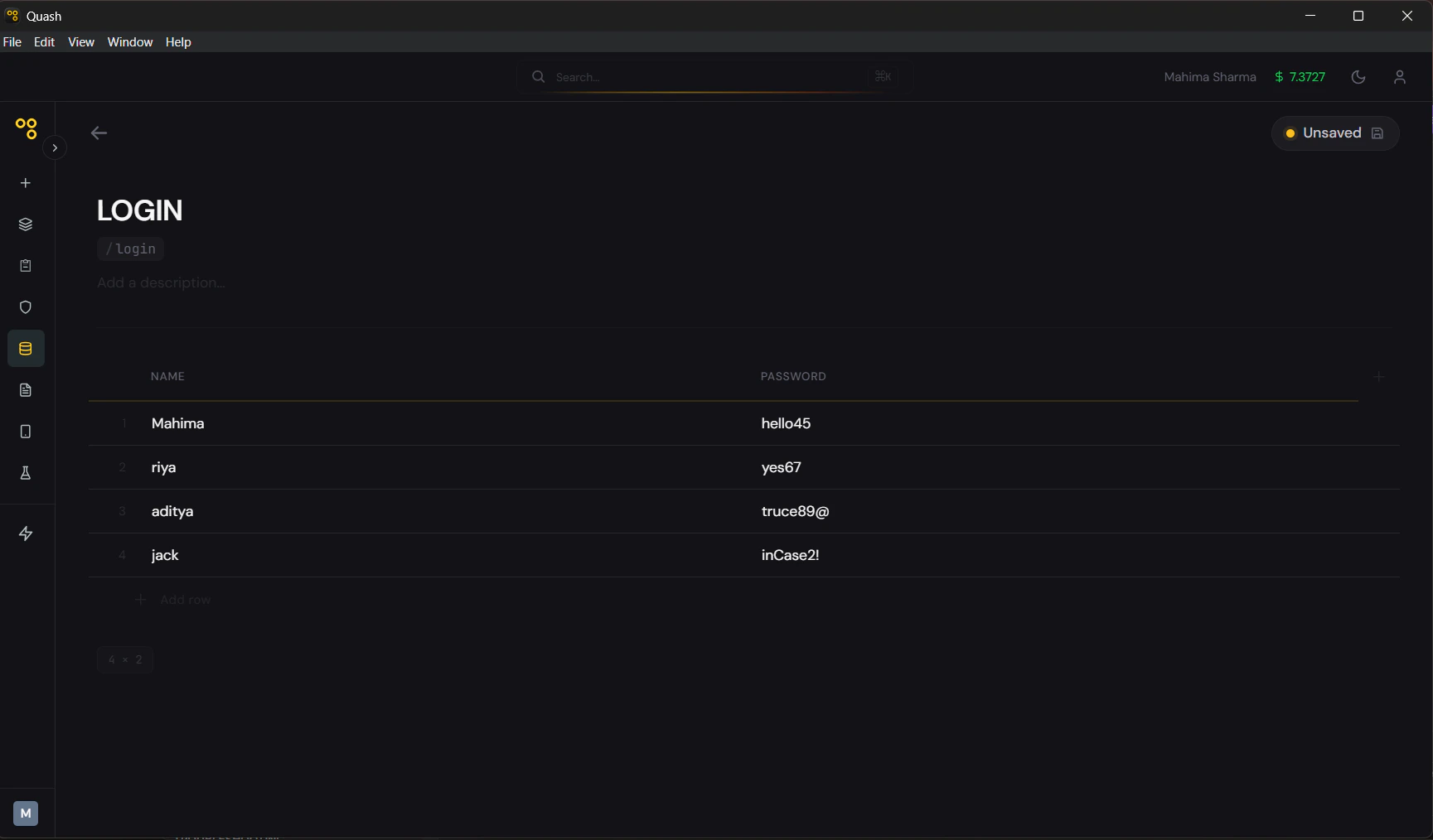
- Click Test Data in the left navigation panel.
- Click + New in the top right. A blank dataset editor opens.
- Click the title field at the top — it reads “Untitled Test Data” — and replace it with a descriptive name. Keep it specific: “Login credentials” or “Checkout promo codes” is better than “Dataset 1”.
- Check the Slug field just below the title. It is auto-generated from your title but you can edit it. Keep it short, lowercase, and hyphenated — e.g.,
/login-credentialsor/checkout-codes. This is what you type in a prompt to reference this dataset. - Add an optional Description to note what the dataset is for or which tests use it. Useful for teammates who inherit your work.
- Set up your columns. Click directly on Column 1 and Column 2 to rename them. Use the + button on the right edge of the header row to add more columns. Column names become the variable names Megumi and Mahoraga understand.
- Fill in your rows. Each row is one complete set of inputs. Click a cell to edit it. Use + Add row at the bottom to add more entries.
- The dataset saves automatically. It appears in the library immediately with its name, slug, size, and a last-updated timestamp.
The size indicator at the bottom left of the editor shows current dimensions — for example 3×5 for a three-column, five-row table.
Naming columns well
Column names matter. They appear in your prompt context and help Mahoraga understand what each value represents.
Use underscores instead of spaces. Keep names lowercase. Make them self-explanatory — when you write a prompt referencing
/login-credentials, both you and Recipe should immediately know what email and password mean.
Editing an existing dataset
- Click Test Data in the left navigation.
- Click the dataset you want to update.
- Edit cell values, rename column headers, add rows, remove rows, or add new columns directly in the editor.
- Changes save automatically.
Deleting a dataset
Open the dataset and click the ⋯ menu in the top right. Select Delete. Confirm. Deleting a dataset does not affect tasks or recipes that reference its slug — they will simply fail to find the dataset on the next run. Before deleting, search for the slug in your tasks and recipes and update or remove the reference.Dataset size limits
- Values are text only — no file uploads, no binary data
- Each cell supports up to 5,000 characters
- Maximum 200 rows per dataset
- Maximum 20 columns per dataset
/login-credentials-valid, /login-credentials-invalid — and reference them in separate tasks.