
Tasks
A task is the most direct interaction you can have with Quash. Write a plain English instruction, select a device, and Mahoraga executes it immediately. No test library to manage, no suite to configure, no setup beyond having a device connected. To access Tasks: Click New Task in the left navigation panel.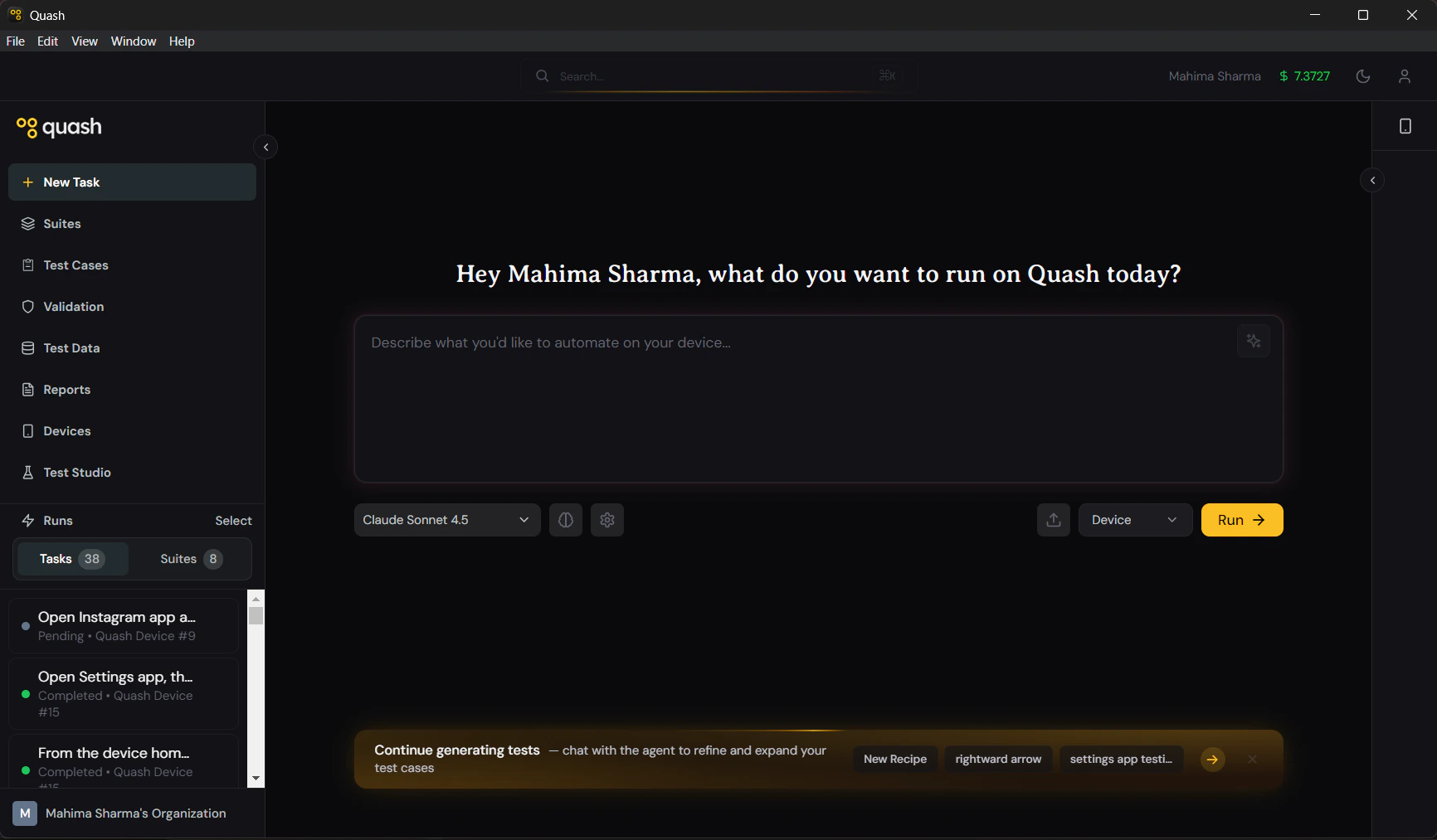
What a task actually is
A task is a single instruction session between you and Mahoraga — Quash’s execution agent. You describe what you want tested in plain English. Mahoraga reads your instruction, opens your app on the connected device, and carries it out step by step — tapping, typing, scrolling, and navigating exactly as a human tester would. Every task run captures a full screen recording, a step-by-step screenshot log, and an AI-written summary of what happened. The result appears in Reports immediately after the run finishes.What tasks are for
Tasks are built for speed and flexibility. They are the right tool when you need an answer quickly — not when you are building systematic test coverage. Use a task when:- You want to quickly verify a specific bug fix before closing a ticket
- You are exploring a new feature or flow for the first time
- You need a fast sanity check before pushing a release
- You are testing something once and have no plans to repeat it
- You want to see how Mahoraga behaves on a particular screen before writing a formal test case
- You need the test to run repeatedly on a schedule or in CI/CD — use a Suite
- You want to build organised, reusable test coverage — use Test Cases
- You need to generate tests from a spec or PRD — use Test Studio
How tasks fit into the bigger picture
Quash has three levels at which you interact with test execution. Tasks are the most immediate.The task interface
When you open Tasks, you see two things: the task input area on the left and the device view on the right. Task input area This is where you write your prompt. There is no character limit. The input also accepts context attachments — you can reference a Test Data dataset using/slug syntax, and Backend Validations using @slug syntax, directly inside the prompt.
Device picker Above the prompt, you select which connected device Mahoraga runs the task on. Any device showing as Available in your Devices section can be selected. If the list is empty, connect a device first.
App picker Select which app Mahoraga should test. The list shows apps you have added in Apps. If Credentials are configured for the selected app, Mahoraga uses them automatically whenever authentication is needed during the run.
Device view The right panel shows a live stream of the device screen during execution. Watch every tap and swipe in real time. After the run, the device view shows the session recording — you can replay, pause, and scrub through the full run.
What Mahoraga does with your instruction
When you run a task, Mahoraga:- Reads your full instruction before taking any action
- Launches the selected app on the device
- Navigates to the starting point your instruction describes
- Executes each step — tapping elements, entering text, scrolling, swiping
- Takes a screenshot after each significant action
- Evaluates whether the expected outcome in your instruction was met
- Returns a Pass, Failed, or Partial Success verdict with a full report
Task history
Every task you run is saved to your task history. From the Tasks section you can:- See all previous task runs with their prompts, devices, and outcomes
- Reopen any past task to view its report
- Rerun a previous task with the same prompt on any available device
- Use a past task prompt as the starting point for a new one
Prompting in Tasks
Task prompting guidance now lives in Prompting Fundamentals, which keeps shared principles and examples in one place across Quash docs. For execution-specific patterns, examples, and mistakes, use Prompting for Task Execution.Next steps
- Creating a task — prompt structure, examples, running, and outcomes
- Prompting hub — Central guide + downloadable PDF
- Test Cases — formalise a task into reusable coverage
- Suites — run multiple test cases together
- Test Data — run the same task with multiple input sets using
/slug - Backend Validations — verify API state during a task run using
@slug