> ## Documentation Index
> Fetch the complete documentation index at: https://quashbugs.com/docs/llms.txt
> Use this file to discover all available pages before exploring further.
# Adding an App
> Register apps and open a five-tab workspace so Recipe understands, authenticates, and tests consistently across sessions.
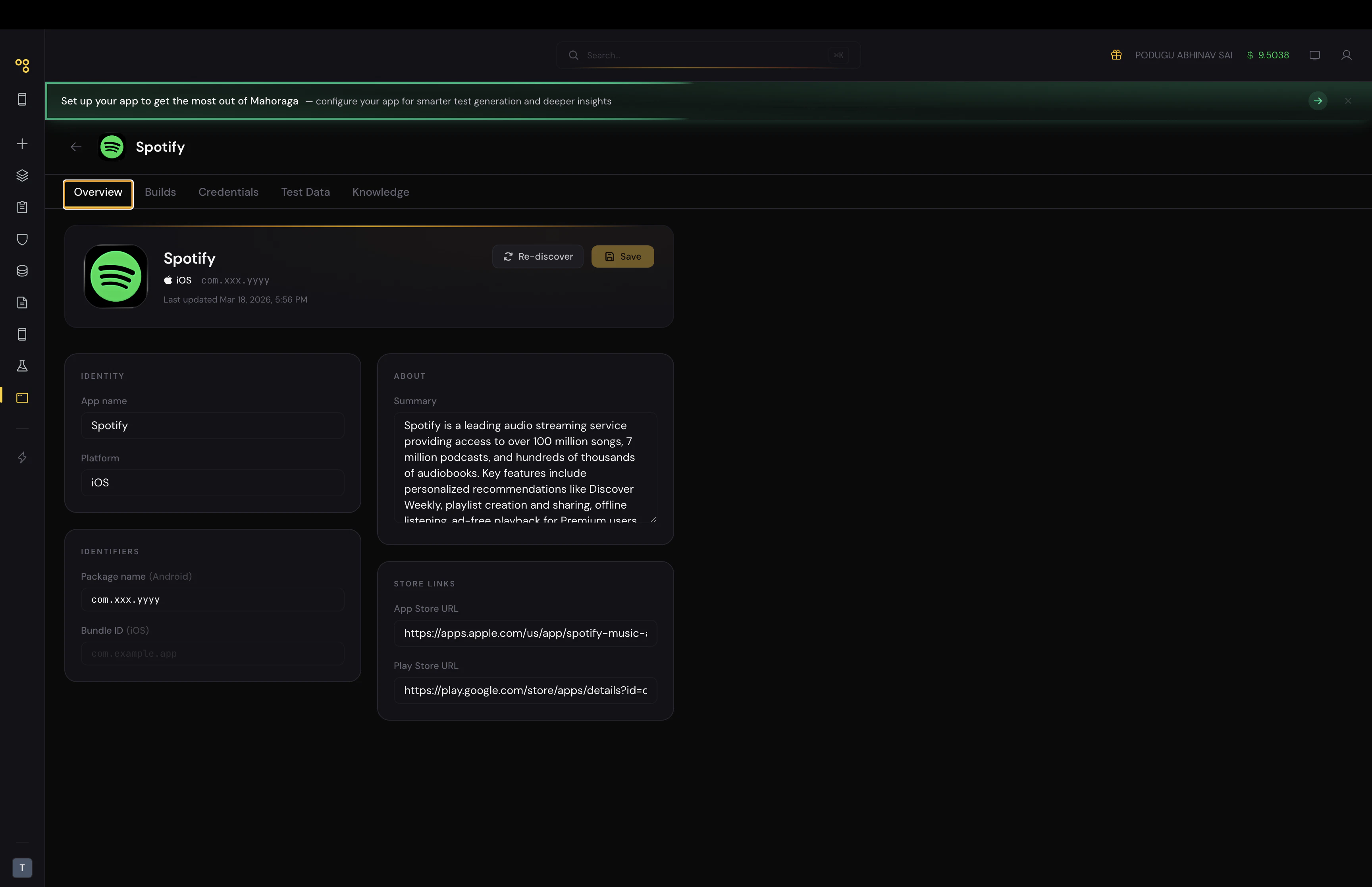
Each app you add gets its own dedicated workspace with five tabs: **Overview**, **Builds**, **Knowledge**, **Credentials**, and **Test Data**. Everything the Recipe agent needs to understand your app, authenticate into it, and generate accurate tests lives here and set once set up, they are available across every recipe and test session.
You can add as many apps as you need. You cannot test on multiple apps simultaneously, but you can switch between them freely from the Apps Manager.
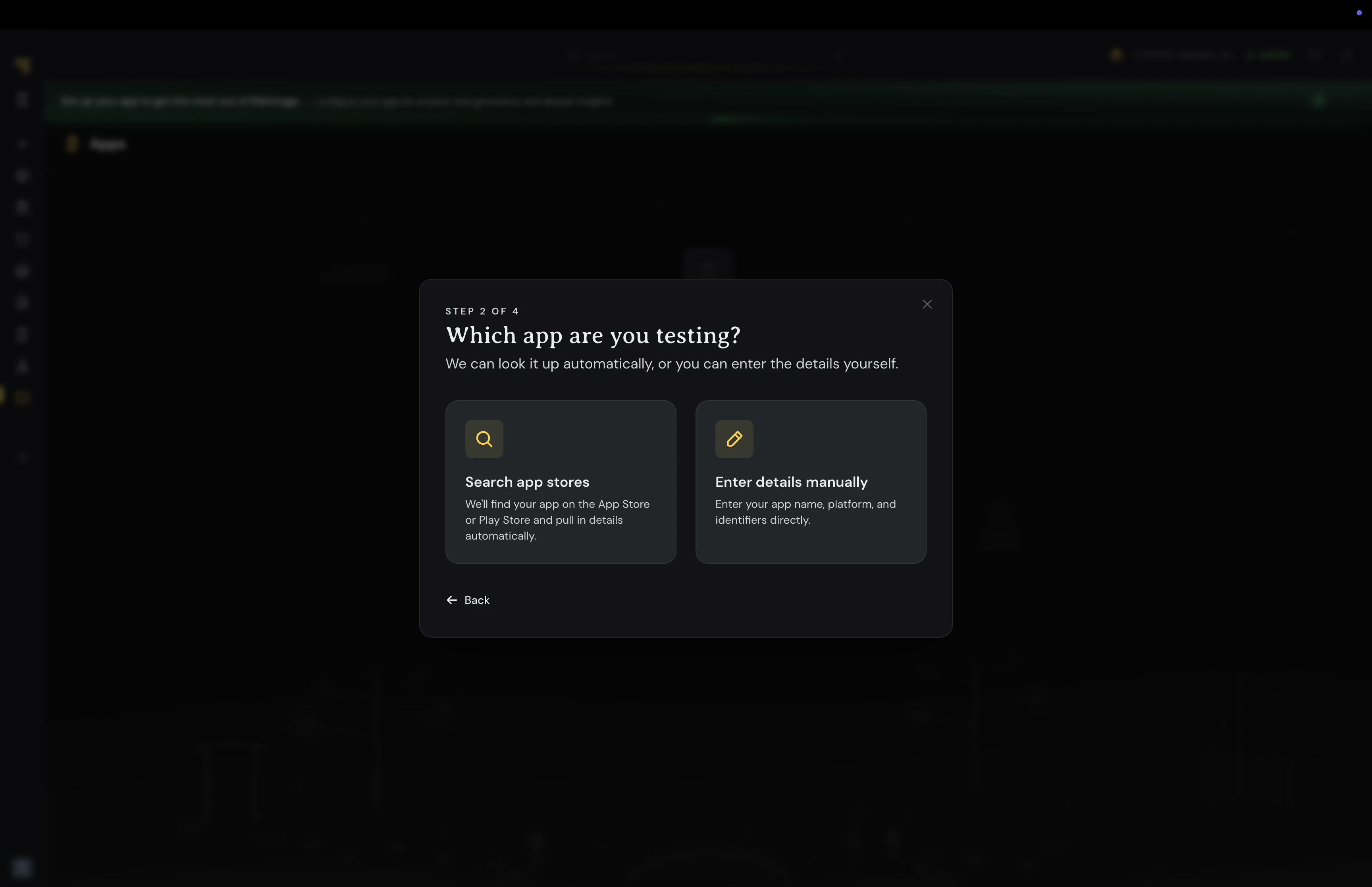
You can add a new app at any point after logging in. Click the app name in the **top-left corner** of the Quash interface, then select **+ Add New App**. You will be given two options.
**Option 1 — Search the App Store or Play Store**
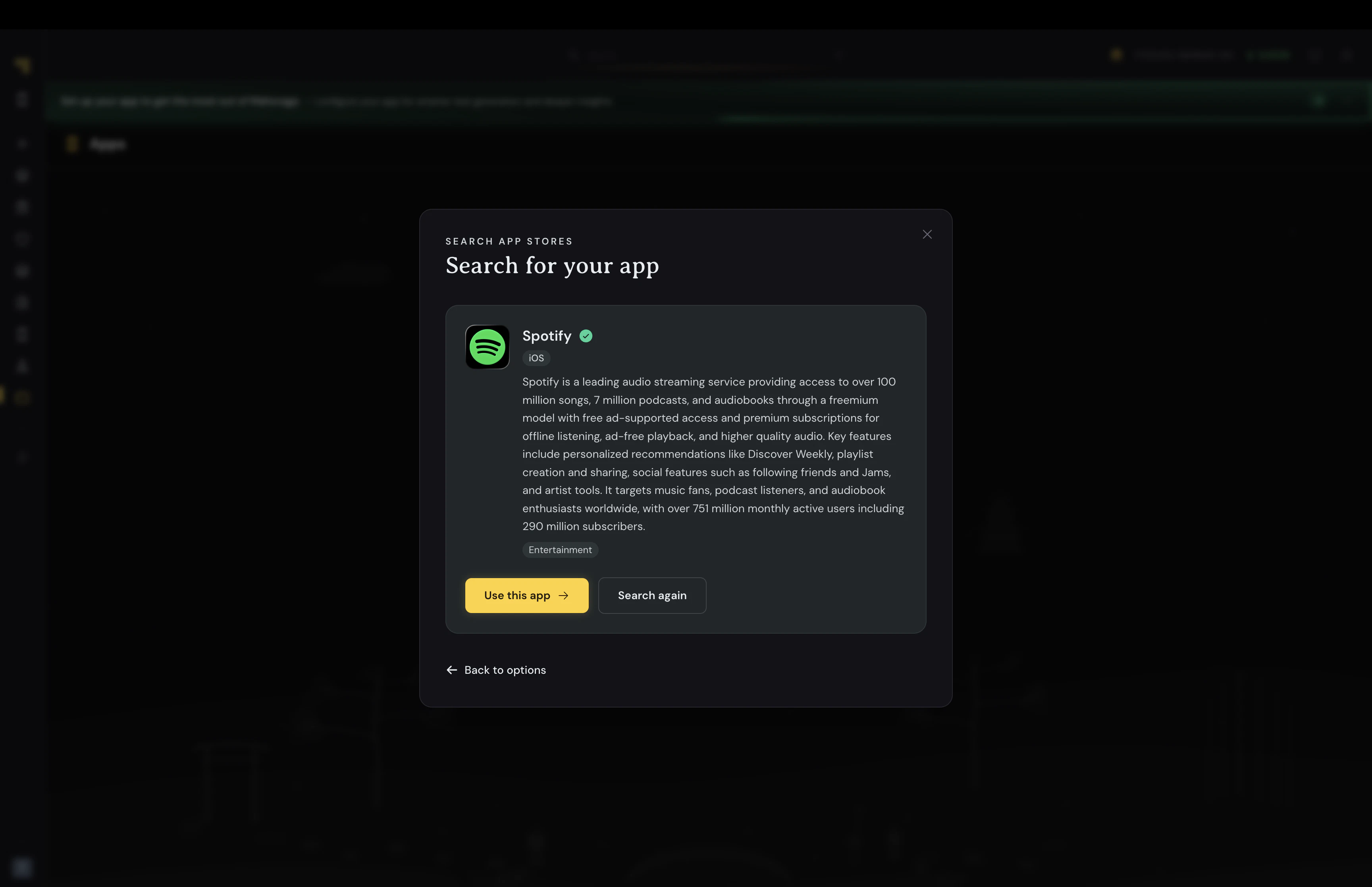
If your app is publicly available, search for it by name. Use the exact name as it appears on the store listing — Quash fetches the app name, platform, category, icon, summary, and store links automatically from the result.
> If your app does not appear, check the spelling and capitalisation match the store listing exactly. Including the publisher name can help narrow results — for example, searching `Porter - Logistics Service App` instead of just `Porter`.
**Option 2 — Add manually**
If your app is internal, in development, or not yet published, click **Enter Manually**. Enter the app name and select the platform — Android, iOS, or both. Click **Add App**.
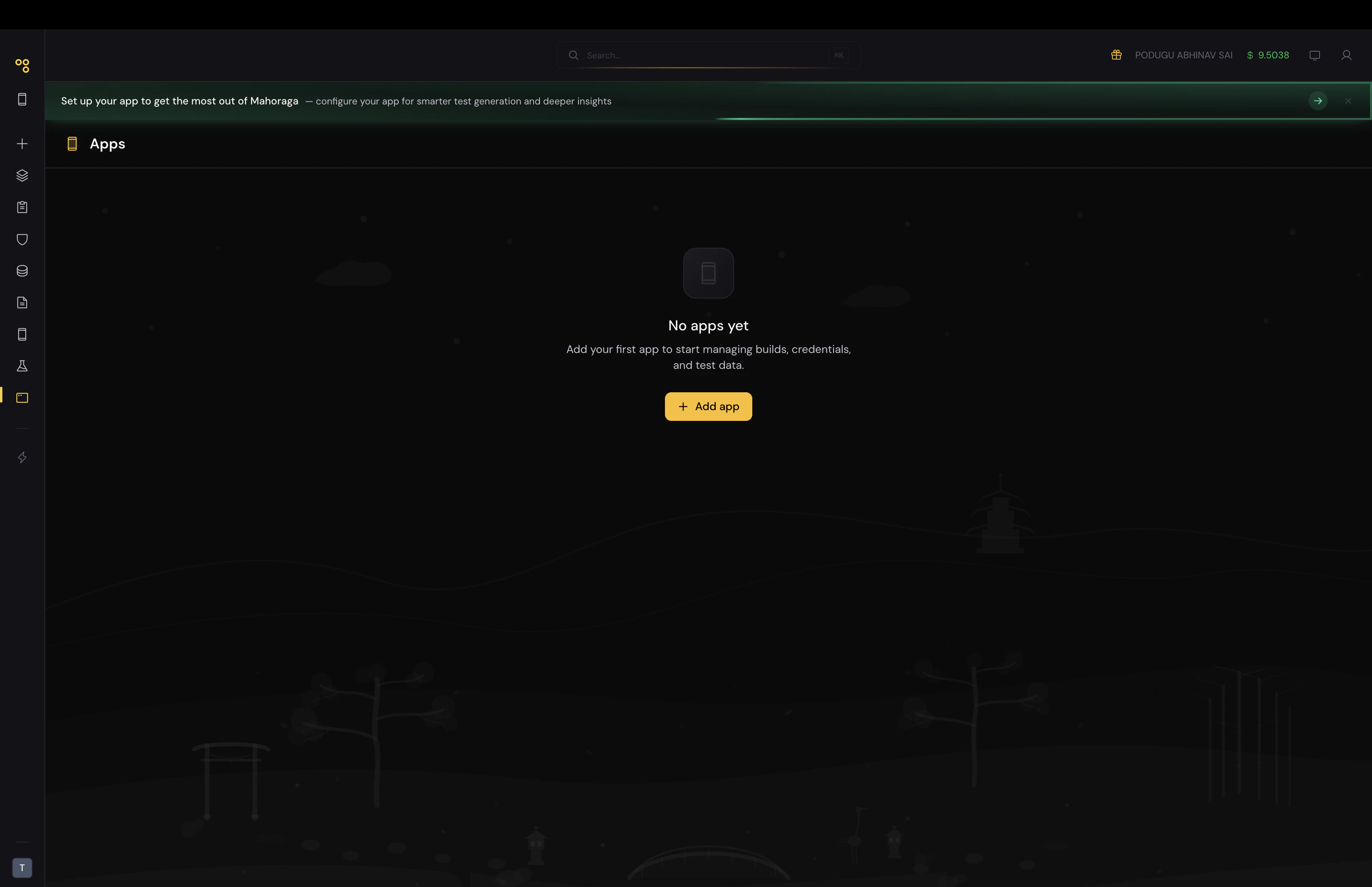 ## Adding an app
When you open Apps for the first time, you will see a **+ New App** button.
1. Click **+ New App**.
2. Search for your app by name.
## Adding an app
When you open Apps for the first time, you will see a **+ New App** button.
1. Click **+ New App**.
2. Search for your app by name.
 3. Select it from the results. Quash pulls the app name, category, platform, and description from its store listing.
 4. Click use this app. The app is added and its detail page opens with all five tabs.
 You can add multiple apps. Switching between apps in a recipe is done via the **+** button in the prompt area.
## If your app doesn't appear in search
* Use the exact name as it appears on the Play Store or App Store, including correct capitalisation
* Include the publisher name — e.g., `"Practo - Doctor Appointment App by Practo Technologies"`
* Avoid abbreviations
You can add multiple apps. Switching between apps in a recipe is done via the **+** button in the prompt area.
## If your app doesn't appear in search
* Use the exact name as it appears on the Play Store or App Store, including correct capitalisation
* Include the publisher name — e.g., `"Practo - Doctor Appointment App by Practo Technologies"`
* Avoid abbreviations